Semantic Catalog Searching
Overview
Qarbine provides both full text search (FTS) and optionally vector based searching of catalog components based on their name and description. FTS is word based while the latter is semantic in nature with a closeness score relative to the search phrase. A search for “greenish” would not match “green” from an FTS perspective but would be very close from a semantic one.
Any FTS match has a score of 1 while scores for semantic matches generally range between 0 and 1. A reasonable closeness threshold is 0.7. Some searches may return no more than a certain number of “matches”. The match elements are sorted by score and then the list is truncated to any maximum.
Configuration
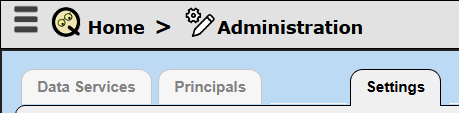
Semantic searching requires an embedding service to provide the underlying comparison vectors. To enable semantic searching open the Administration tool and activate the Settings tab.
Add a new entry as noted below.

Double click or use the pop up option to edit the entry as shown below.
catalogSettings = {
semanticSearching : { useAiAssistant: 'myInternal', dimensions: 384 },
}
The useAiAssistant value cross references to an entry in another setting which is of the form
aiAssistants=[
… alias entries …
]
The semantic search setting requires the “dimensions” value in order to define the underlying vector search index. You can use any AI Assistant entry including Qarbine’s internal one. The vectors for the name and description items are obtained when they are changed. Note that some services may consume tokens with charges. Qarbine’s internal embedding service is a free option and is described in its own configuration document in this online documentation section.
Once both settings are defined save them by clicking  .
.
Next, restart the main Qarbine node to have them applied to the operating server.
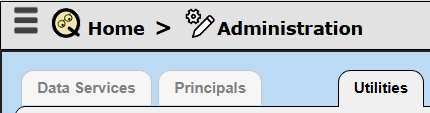
Once the server has been restarted navigate to the tab highlighted below.
Select the option shown below

The bottom portion of the working area has

To begin rebuilding the index click

The rebuilding occurs in the background. The time it takes to complete varies by the number of components in the catalog, the diversity of the name and description values, the embedding service being used, and network conditions.
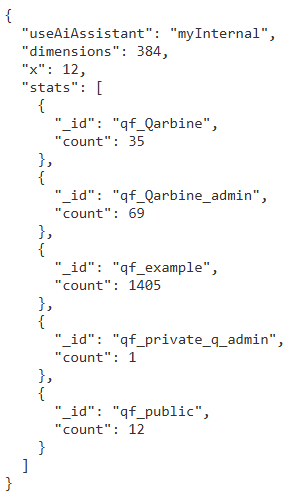
To check on the rebuild status and the status in general click.

Sample output is shown below.